Most of my favorite software applications are made by indie developers. What makes their products stand out is that they do fewer things, but do those fewer things better. They are more focused on specific tasks and target a smaller, more discerning user audience. The result is a superior user experience, which typically also extends to the way you contact their customer support teams.
Instead of steering you towards AI chatbots, overcrowded customer forums, or phone hotlines with long wait times, smaller developers let you contact them more conveniently and more directly. The most common mechanism to initiate that contact is via a command in the Help menu, such as Contact Support, Contact Us, etc. Selecting that command does one of two things: it either opens a web page with several contact options, or it creates a blank email, pre-addressed to the appropriate destination. Both of these methods do share the same drawback, however: they make you switch contexts.
Context-switching increases cognitive load
After selecting the command, you find yourself in your browser or email client instead of the actual application. So if you want to experiment with anything in the application while you compose your support request, you now have to jump back to that application. And then return to the browser or email client to continue capturing your thoughts. And possibly back and forth a few times before you’re ready to hit “Send.”
Admittedly, not every user might find this problematic. Especially when submitting a feature request or bug report, however, I want the details to be spot on. And so I often find myself going back and forth several times between trying something out and writing my message to the developer.
Such context switching requires considerable cognitive effort, especially for neurodivergent users. I didn’t quite realize just how annoying this feels until I discovered a more seamless design. This design integrates the contact feature into the application, whose name is Unclutter.
Unclutter is a nifty macOS utility for temporarily storing files and text notes that you might otherwise dump on your computer’s Desktop. Instead of, well, cluttering up the latter, your temporary notes, files, and your clipboard history live in a drawer that’s attached to the bottom of the menu bar. Don’t need it? It disappears completely — until you summon it via customizable mouse or keyboard interactions.
Requesting support should be simple, convenient, and direct
Unclutter has a single menu which contains a Provide Feedback on Unclutter… menu item. Selecting that command does not take you to the browser or email client, but summons a dialog box in the application.
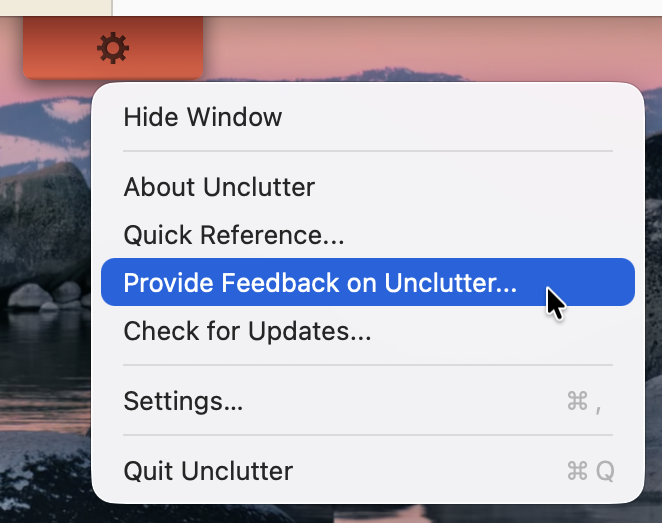
(I wish the command was labeled Contact us… for a bit more information scent. Then again, it makes me irrationally happy that some designers and developers still care about properly using the ellipsis character “…” in a menu command!)
In the dialog box, a huge text field provides ample space for typing in a detailed message. Via a segmented control, you explicitly choose what kind of message you’re sending: a general question, a feature request, or a bug report.
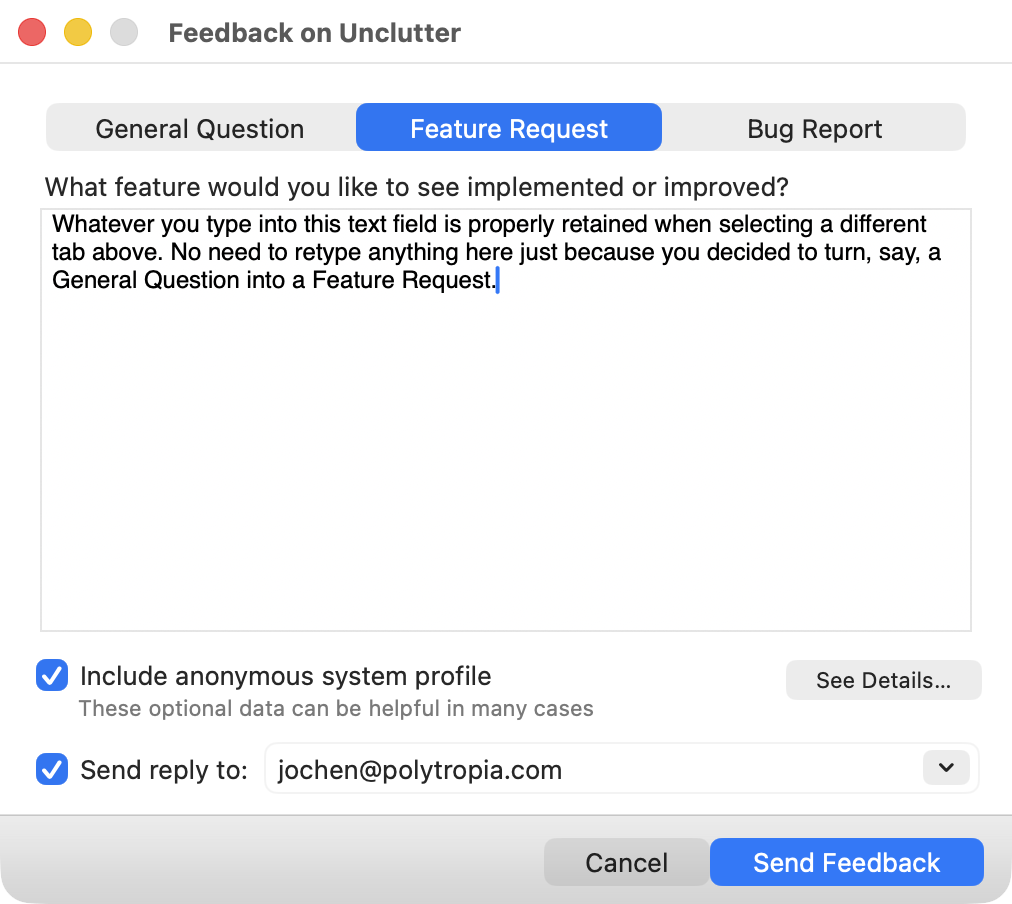
For feature requests and bug reports, you can optionally include an anonymous system profile. Privacy-conscious users can click the See Details… button to view the exact information that is included in the profile. Finally, you can choose whether you’d like to receive a reply from the developers.
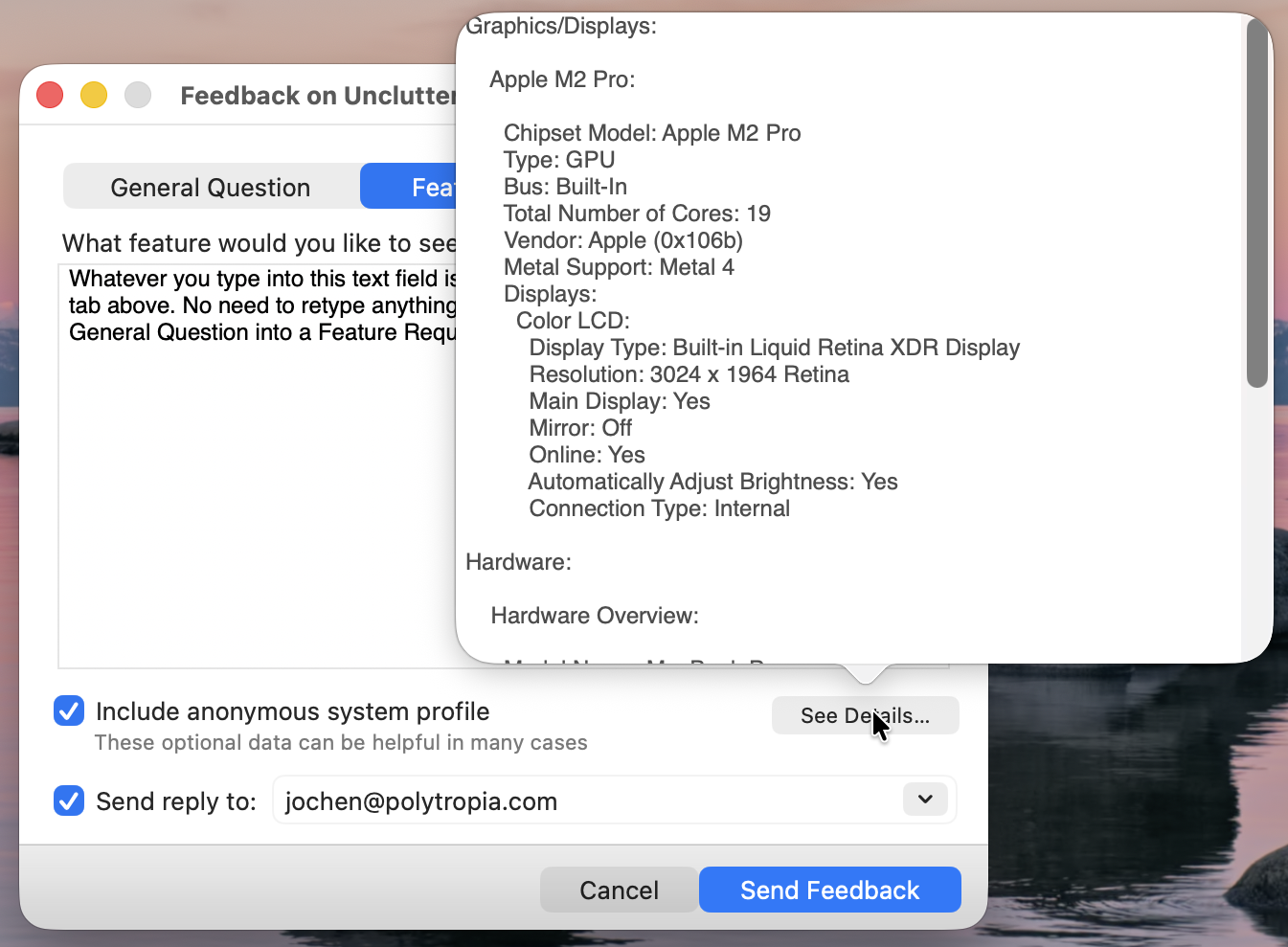
(Note how there’s nothing in this window that tries to trick you into signing up for a newsletter, or similar marketing junk. This feature is all about letting you contact the makers of that application, and that’s it!)
Not every dialog box needs to be modal
Despite its appearance, this dialog box is not modal. You can fully interact with the application while the feedback window is open. That may sound trivial, but it’s a detail that relates to the context switching I mentioned earlier.
Imagine that you’re composing a feedback message and you quickly want to confirm a detail in the software’s behavior or layout. If the window were, in fact, modal, you’d have to dismiss it, check whatever you want to check in the application, and then re-open the feedback window. That would just add unnecessary interactions towards your goal of submitting user feedback. Thanks to the window remaining open and instantly accessible, though, that process is much smoother and much more frictionless.
There’s just one detail in this feature that I found a bit unsatisfying. When you click Send Feedback, there is a subtle progress indicator during the upload, but there is no explicit confirmation that the message was sent successfully. The window just closes silently. I wish that Unclutter would display a system notification or a message inside the window, to provide that little extra sprinkle of perceived closure for the feedback workflow.
What you will receive — if you select the “Receive reply” checkbox, of course — is a personal, thoughtful, and 100% human-written response from the developer. And that is absolutely priceless.
Of all the in-app feedback mechanisms I’ve encountered so far, this one easily is my favorite. I think it’s so well designed, in fact, that I wish it were the de-facto standard framework for macOS applications in the way that Sparkle is the de-facto standard for software updates. Maybe a FOSS spin-off idea for the folks behind Unclutter?