Cleaning up Some Article Meta-Data

Before I launched this website in January of last year, it took me quite a while to decide how to leverage categories and tags towards making it easier for you, valued reader, to find articles that interest you.

Applied Information Architecture

Eventually, I settled on using categories for indicating the general category of the product I was writing about, and applying tags to list the user interface elements I was focusing on.

Every article was assigned exactly one product category and one or more UI detail tags, e.g., “Press for Coffee (W)here?,” that covers a coffee pump pot, was categorized as “household items” and tagged “buttons” and “labels,” and “The Bubble Cursor in Action” zoomed in on “cursors” and “target acquisition” while observing “usability basics.”

What’s with the wacky language in the second example, you ask?

Originally, I thought it was kind of funny in a geeky way to “zoom in on” the UI details while “observing” a product category. Maybe you noticed that the custom URLs reflected this, too: for tags, I used a construct like:

https://uiobservatory.com/zooming_in_on/cursors/

Similarly, categories were linked to via:

https://uiobservatory.com/observing/household-items/

Just too much stuff

Over the last few months, that system has turned out to be way too complicated.

With every article I published, I was tempted to add new tags and categories to reflect new UI elements and product categories that I “zoomed in on” or “observed,” respectively.

This becomes obvious when you have a look at the tag cloud:
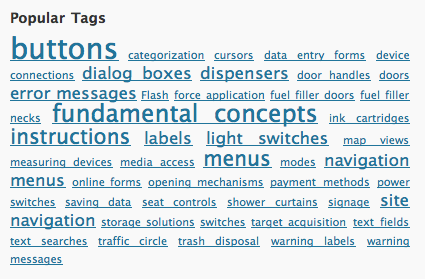
UIOTags

You will most likely not have seen this tag cloud before, because its contents were not exposed on the site — unlike the list of categories, which appears to be almost as uselessly messy as the tag cloud:
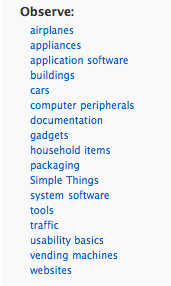
UIOCategoriesOld

It was time to fix this, and I hope that the new approach will do just that.

Simplify, simplify, simplify

In the first step, I have completely removed all tags, and not just from being displayed in the articles’ by-lines, but also from the article database.

Secondly, for categories, I have been musing on how, exactly, I want to group the articles on the site. Most UI-related websites and blogs I follow focus almost exclusively on digital devices and software user interfaces. As soon as I fully realized that, I knew that it would make the most sense to categorize my articles based on the complexity and very general category of the devices covered.

Hence, this is the simplified categories structure that I came up with:

  • Usability Basics: Fundamentals of the science of human machine interaction and the art of user interface design.

  • Simple Things: Everyday things with a limited, yet often intriguing user interface, like door handles, coffee pots, and make-up mirrors. According to Donald Norman, users should be able to use these kinds of devices without having to read a manual.

  • Appliances: Stand-alone devices with more complex user interfaces, e.g., ticket vending machines, home theater components, and car dashboards.

  • Computer Software: Any software that runs on personal computers, “smart phones,” tablet computers, etc. This covers applications and operating systems as well as websites.

  • Documents: User manuals, questionnaire forms, etc. This category might as well have been labeled “content usability.”

  • Services: Processes or workflows which are based on interactions between individuals and organizations.

It’s these six categories that you will see in the side bar from now on, and I hope you find them easy to grasp and convenient to navigate.

As for the tags, searching for UI elements like buttons or cursors via the site’s search field should bring up more relevant results than the tags I had applied manually. They will not be missed, I’m sure.

Whaddayasay? Lemme know!

Let me know what you think about this change: pop me an email and share your likes and dislikes about the new setup with me.

Update 2013-02-26: Added the Services category.
When Buttons Get in the Way of Touch Screen Gameplay

Playing games on a touch screen device can be a delightful experience: being able to directly manipulate objects with your fingers on the screen without having to go through a “control intermediary” like a joystick makes for immersive and engrossing gameplay.

With the entire screen being used as a game controller, however, game designers must pay special attention to the placement of on-screen menu navigation controls: your enjoyment of a game will decline rapidly if you’re repeatedly catapulted back to the main menu screen, just because you inadvertently hit the wrong button while tackling a difficult game level.

Aim… fire! — Aim… fire! — Aim… RESET LEVEL?!?

In the physics-based puzzle game Ragdoll Blaster 2, your aim is to hit a target with ragdolls, which you shoot from a cannon. To clear the ballistic path towards the target, you shoot the ragdolls against objects like boxes, wheels, etc. to move them out of the way, make them spin, and so on. Inertia for the win!

Your finger’s position on the touch screen aims the cannon and also controls the force with which the poor ragdolls are sent on their trajectory — the farther your finger is away from the cannon, the stronger the blast.

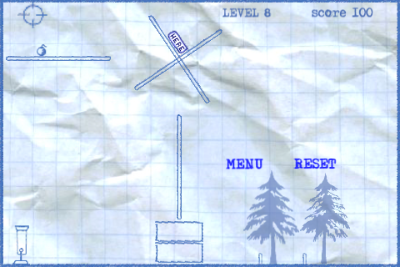
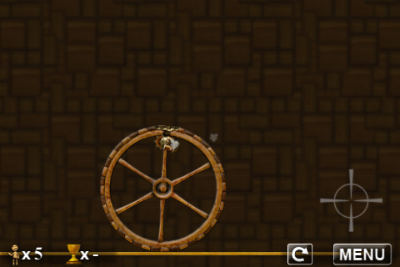
In the level shown below, you need to set the big wheel in motion by shooting the cannon that is mounted to the wheel’s rim (it’s the weird contraption seen at the wheel’s apex). The rebound from shooting a ragdoll applies force to the wheel, and if you aim it right so that the force is tangential to the wheel’s circumference, the wheel starts turning.

RagdollBlasterBigWheel

The crosshairs on the screen indicate the position of the player’s finger, which, in this case, is very close to the two on-screen buttons, “restart level” and “menu.” It’s way too easy to hit either button while feverishly tapping the screen to get that big wheel rollin’. Consequently, getting through this difficult level is extremely frustrating.

The buttons’ default position is the lower right corner of the screen. In a few levels, the designers have placed them in other corners, thus showing that they are aware of the issue. Nevertheless, in some of the game’s levels, the buttons still do get in the way, adding the kind of difficulty to solving those levels that goes well beyond what the player perceives as “pleasantly challenging.”

Ragdoll Cannon, which is one of two games found in Physics Gamebox, works off the same game idea, and it also features similar “reset level” and “menu” buttons. In this game, however, the buttons are not always tucked away in a corner of the screen, but sometimes show up nearer the screen’s center, too.

RagdollCannonButtons

Even with the buttons being moved out of harms way as best as possible, there is a more robust approach: a slider.

When a simple tap shouldn’t do

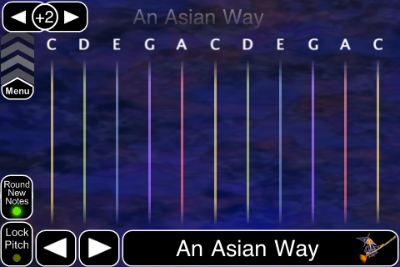
The music performance application MorphWiz uses most of the screen to display an x/y-“keyboard:” the horizontal axis represents pitch, the vertical is used for modulation such as morphing between two different waveforms.

MorphWiz’ user interface displays only two controls that are not related to actually performing with this instrument: the sound preset selector (the two arrows) and the slider in the top left corner to bring up the app’s main menu.

MorphWizPerformanceView

The slider works just like the one that you use to unlock your iPhone or iPad: to go to MorphWiz’ main menu, you have to consciously move the slider upwards — it’s not enough to casually brush against it with your finger, whether intentionally or by accident.

What’s more, if your finger happens to end up on the menu slider while you’re playing MorphWiz, it will ignore the finger press: if you hold down a finger to play and then move it over the menu slider, nothing happens. MorphWiz just continue to play the sound.

In true multi-touch fashion, you can access the slider while playing, but with another finger: if you operate the slider with a “new” finger in addition to the one(s) you’ve been playing music with, it does react to your input. The same applies to the two preset selector arrow buttons.

This behavior of the slider makes it virtually impossible to leave MorphWiz’s performance screen and dive into the app’s configuration mode unless you really want to do so.

Such a slider, when used for navigating away from a game screen, could also go a long way in preventing gamer frustration.

Menu navigation controls don’t always get in the way

Not all games require work-arounds for on-screen buttons, though. They work just fine as long as they are not positioned within the area of the touch screen that is used for controlling the game.

In the game Flight Control, you direct airplanes and helicopters to their respective landing strip or pad by drawing a flight path from the aircraft to the color-coded destination right onto the screen.

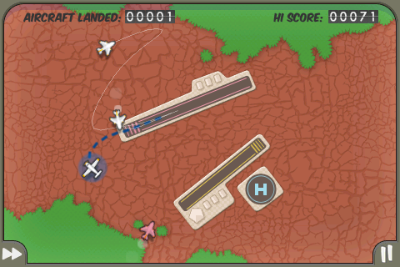
In this game, the button to go to the game’s main menu is positioned in the screen’s lower right corner and indicated by the “pause” symbol.

Even when the screen gets crammed with aircraft and you frantically try to keep them from crashing into each other — which, very obviously, ends the game –, the focus of the game is near the center of the screen and the risk of hitting the “pause” button by mistake is all but non-existent.

Flight ControlMainScreen

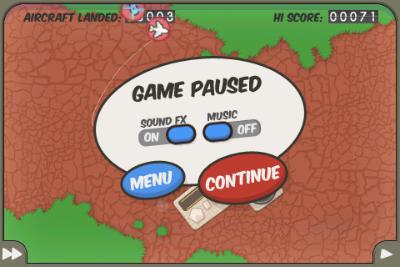
When you do hit the pause button, a dialog screen comes up in which you can choose to continue playing the current level of the game, or continue to the main menu, which will also reset the level you just played.

Consequently, unlike the Reset Level button in Ragdoll Blaster, even if you do hit the Pause button in Flight Control by accident, you will not lose any progress you have made in the game.

In other words, the worst that can happen is that you literally pause the current level, but you can always return to where you were in the game.

Flight ControlPauseScreen

Also note how two key preferences options, namely sound effects and music, are accessible via the pause screen, as well, so you can adjust them without having to leave your current game.

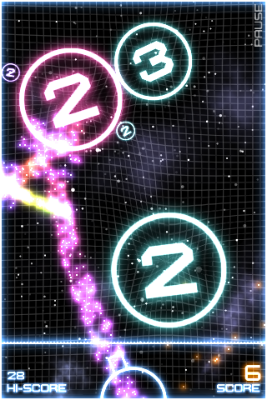
A final example, the shoot-at-orbs game Orbital uses the entire screen as its fire button — with the exception of the miniature-sized “PAUSE” text in the screen’s upper right hand corner.

OrbitalGameScreen

Operation of this button is similar to the Pause button in Flight Control: the chances of hitting the Pause button unintentionally is very slim, and even if you do, the current level is paused, not reset.

You only lose your progress if you continue from the Pause screen — which, of course, also sports a “Return to Game” button — on to the main menu.

When do you need to go beyond buttons?

The most reliable way for designers to decide whether to use plain buttons, and where to place them on the touch screen, is to simply play the game for a while: if you’re accidentally thrown out of the gaming action a few infuriating times too many, try to find an alternative solution. Like, for example, the Menu slider found in MorphWiz.

Applications that do use buttons should always Pause the game, instead of resetting the current level or going straight to the main menu. This adds an extra level of protection against losing game progress versus the simple buttons found in Ragdoll Blaster 2.

Donald Norman’s Videos for “The Design of Everyday Things”

Mads Soegaard from Interaction-Design.org has published a set of restored videos from a 1994 CD-ROM edition of Donald A. Norman’s book, “The Design of Everyday Things.” In these videos, Norman explains key concepts from his book.

It’s odd to think that, from a human’s point of view, the videos are only 17 years old and at the same time, in Internet time, are already 17 years old. But as it says in the video captions: “Vintage video from 1994 – still highly relevant today” — highly relevant today, indeed!

Videos: 17 years old — Video Contents: timeless

Among the videos, I’ve found two favorites: Video #1, which addresses “affordances,” the abstract concept that may be a bit difficult to understand — until you see the video in which Norman explains it.

And video #6, “Conceptual Models of File Systems,” which provides a wonderful example for how easily the user’s mental model can depart from the one that the designer had considered to be perfectly obvious and appropriate.

On his own website, Norman himself provides a bit of background information about these videos.