A Button That Flees From the Mouse Pointer

Apple is a company that, by and large, groks good design. Their teams’ creations regularly constitute industry benchmarks, both in terms of industrial as well as user interface design.

Like everyone who makes stuff, some of Apple’s design decisions may be debatable, but they rarely make choices that are outright, facepalm-inducing mistakes violating the very foundations of design.

Unfortunately, just today, I happened to stumble over one of the latter.

“Catch me!”, says the button, and runs

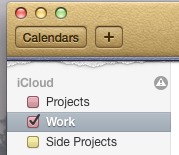
If you synchronize your calendars in Apple’s iCal via iCloud and an error occurs, a little hazard triangle appears next to the iCloud label in the calendars list.

The hazard triangle icon appears on the same line as the 'iCloud' group header, and sits at the right edge of that line.

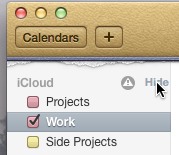
The moment you move your mouse pointer over that icon to find out what went wrong, the icon jumps to the left, because it happens to be in the location that is usually reserved for the Hide button. Which, ironically, is itself hidden and only appears when you hover the mouse pointer over it.

When the mouse pointer is in the position that the hazard triangle is, or rather was, in, it shifts towards the center of the line to make room for the 'Hide' button, that takes its former place.

I’m not sure why Apple’s designers got rid of the disclosure triangle, which has been a UI staple on the Mac for ages, and replaced it with a literal Hide button. This is one of those design decisions I’d consider “debatable”.

Placing another button directly on top of the Hide button, however, and making it jump out of the way when hovered over, is something I’d immediately list under the “what the heck where they thinking?!” heading.

The Case of the Mysteriously Missing iBooks

Every now and then, I tidy up the media libraries on my mobile devices. When I sorted through the documents in the iBooks app recently, I noticed that two books — Aaron Cordova’s edition of The United States Constitution and the Little Snitch 3 documentation — appeared on the iPad, but not on the iPhone.

It took a friendly reminder from fellow-UX designer, Phil Suessenguth, to make me check whether these two titles were iPad-only.

Unfortunately, Apple makes that check surprisingly difficult.

A hint on the iPad — if you can find it

For starters, I searched for “little snitch” in iBooks on the iPad. It came up as the sole search result.
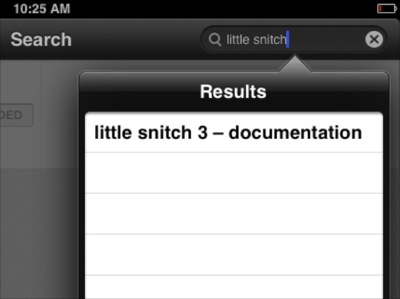
iBooks finds one matching title for my search term, and lists it in the Results menu.

When I tapped it, the book’s overview appeared. Because it was installed on the iPad, its status was properly displayed as “Downloaded”. This view does not indicate the book’s iPad-only status, though. For that, you need to dig a bit deeper.
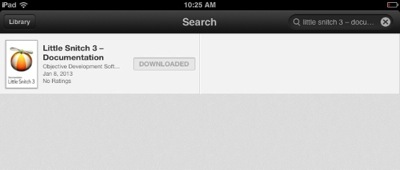
Now, the search shows the book's cover, title, author, release date, and ratings, but it does not state that this book is iPad-only.

After tapping the item, and scrolling down the Details section, I finally found a Requirements field. It is in this field that Apple tells you that this book is only compatible with the iPad.
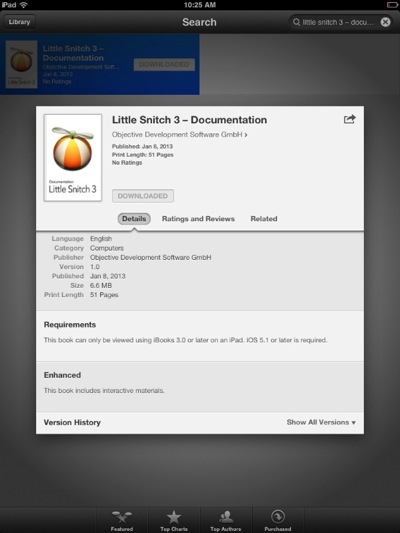
Only the Requirements section in the iBook Store's Details view clearly state that 'This book can only be viewed using iBooks 3.0 or later on an iPad.'

On the iPhone, the user experience is much worse.

“I ain’t telling you nuthin’!”

Performing the same search on the iPhone, iBooks did find the book again. My expectation with search results like this is that if you tap on any of them, you will be taken to the respective product’s details.
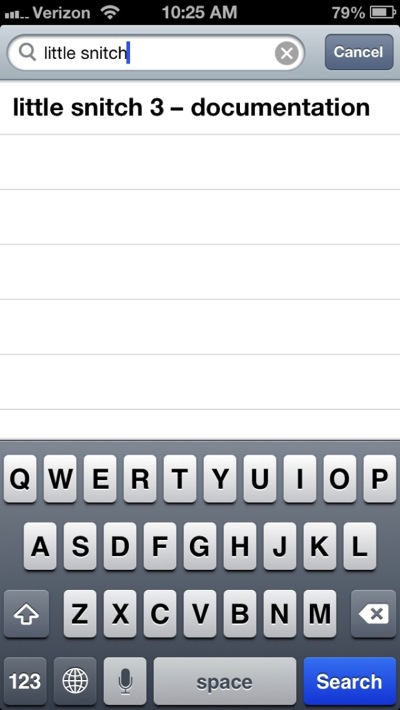
On the iPhone, the title appears in the search results list as well.

Not so in this case: Tapping the single search result brought up a blank screen, even though the app clearly found the exact title I was looking for.
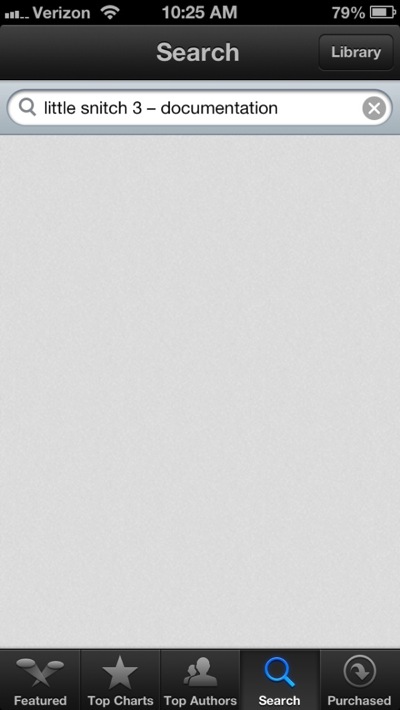
While the search field does show the exact title of the book I was searching for, the results view beneath it is completely blank.

At first, I thought I had run into a bug. So I terminated iBooks, relaunched it, repeated the search, and got the same result.

Worse yet, while the two books appear in the iTunes library on my Mac as well as in the Purchased Items list on the iPad, they are completely missing from that list on the iPhone. In fact, based on what you get to see on the iPhone, it’s as if I had never purchased the books at all, and I never could.

A hidden hint in iTunes

In the iTunes desktop application, you can see a book’s requirements when you view it in the Store.
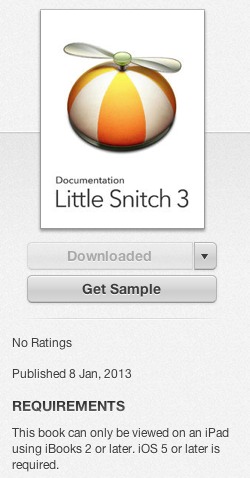
This detail view shows the Requirements section with the iPad-only notice, as it is displayed underneath the book's cover shot in the iTunes desktop app.

That changes as soon as you have downloaded the book: When you view it in the Books section of your iTunes library, there is no hint about a book’s iPad-only status. The Info dialog box on the book doesn’t help either, as the Kind field simply states “Purchased Book”, which applies to any book downloaded from the iBooks Store.

There is one place in the iTunes application, after all, where the compatibility information is displayed even for downloaded books: it’s the dialog box that opens when you double-click a book in iTunes.
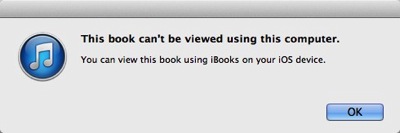
The warning dialog box states that 'This book can't be viewed using this computer. You can view this book using iBooks on your iOS device.'

Note how the ending of the second sentence changes if the book is iPad-only. Instead of “your iOS device”, it now says “your iPad”:
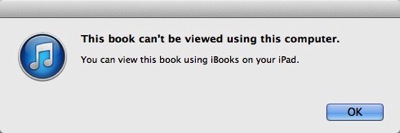
At first sight, this dialog box looks identical to the previous one. Its second sentence, however, ends in 'using iBooks _on your iPad_.'

This hint is so subtle, however, that I doubt it will be easily discoverable when you’re specifically looking for this piece of information.

Tell me what’s going on!!

If you missed the Requirements section when purchasing a book, or if you simply forgot about a specific book being iPad-only, the entire iTunes/iOS/iBooks infrastructure will leave you guessing why some books are synchronized to some, but not all, of your iOS devices.

Fixing this problem is easy:

  • In iTunes, an icon in the Books or List views could indicate the iPad-only status. The “kind” field could say “Purchased book (iPad only)”.

  • In iBooks, an icon could indicate iPad-only books, similar to how the “+” icon in the App Store indicates universal iOS apps that work on both iPhone and iPad.

  • On an iPhone, iPad-only books could appear in the Purchased Books list with their download buttons disabled and labeled “iPad only”. The same design approach could be used in the Store’s Search results list.

I find it baffling that this specific information is not provided in more prominent, more easily discoverable ways.
Embedding a Maintenance Schedule in Clever Packaging

Modern vacuum cleaners are equipped with two air filters: One protects the appliance’s motor by filtering the air that is sucked in, and the other protects the user’s lungs by preventing fine dust particles from exiting the exhaust.

These filters need to be replaced regularly, but much less frequently than dust bags. Manufacturers that sell filters and dust bags separately, place the burden of keeping track of these replacements on the user.

At least Miele makes their customers’ lives a bit easier by bundling filters with dust bags into one retail box. The box contains four dust bags and one each of the two filter types.

A photo and the line '4 + 1 + 1' show that this box bundles dust bags with motor and exhaust filters.

The manual for Miele’s vacuums states:

An [exhaust] filter is supplied with every box of Miele dust bags. It should be replaced each time a new box of bags is started.

A similar statement addresses the motor filter.

Make sure one box is completely empty before you start the next

There is one flaw in this design, though.

Judging from the bundle, each filter should be good for use with four dust bags. By following Miele’s instructions of replacing the filters when you start a new box of dust bags, however, you would throw out the two factory-installed filters in a brand-new vacuum after filling just the one pre-installed dust bag.

The fix? Don’t replace the filters when you start a new box of dust bags, but when you finish it.